 iFarm
Run real iPhones
from one Mac.
See every phone live, control it with your mouse, record what you do once and replay it on every screen size, and schedule it all. One app, a setup that checks itself, and a guide that actually explains things.
A founder's best hours are worth more than tapping the same buttons on ten phones. The work that moves anything forward is the work only people can do: the idea, the story, the conversation, the judgment call.
When I started running phones, nothing made that easy. The guides skipped the hard parts, the tools were thin, and everything sat behind a monthly bill. So I built the tool I wished I'd had: the phones take the repetition, and you keep the human part.
iFarm is free. Every feature, for life. No plans, no trial, no credit card. Give the routine to the machine, and spend yourself on what only you can make.
Dean Hajjar, maker of iFarm
Phone farming shouldn't need a detective.
How it usually goes
- Guides that skip the steps where everyone gets stuck
- Terminal commands, config files and half a dozen tools to install
- A monthly price for every phone you add
- Your accounts and logs on someone else's server
- When something breaks, a cryptic error and no idea what to do
How iFarm does it
- A step-by-step guide, plus a setup screen that checks every step itself
- One app. iFarm downloads, builds and installs everything for you
- Free for any number of phones, forever
- Runs entirely on your Mac. Nothing is sent anywhere
- Every known problem shows a plain-words fix, and many fix themselves
From zero to a running farm in about 20 minutes.
Most of that is waiting for Xcode, Apple's free developer app, to download. Everything else is a few clicks.
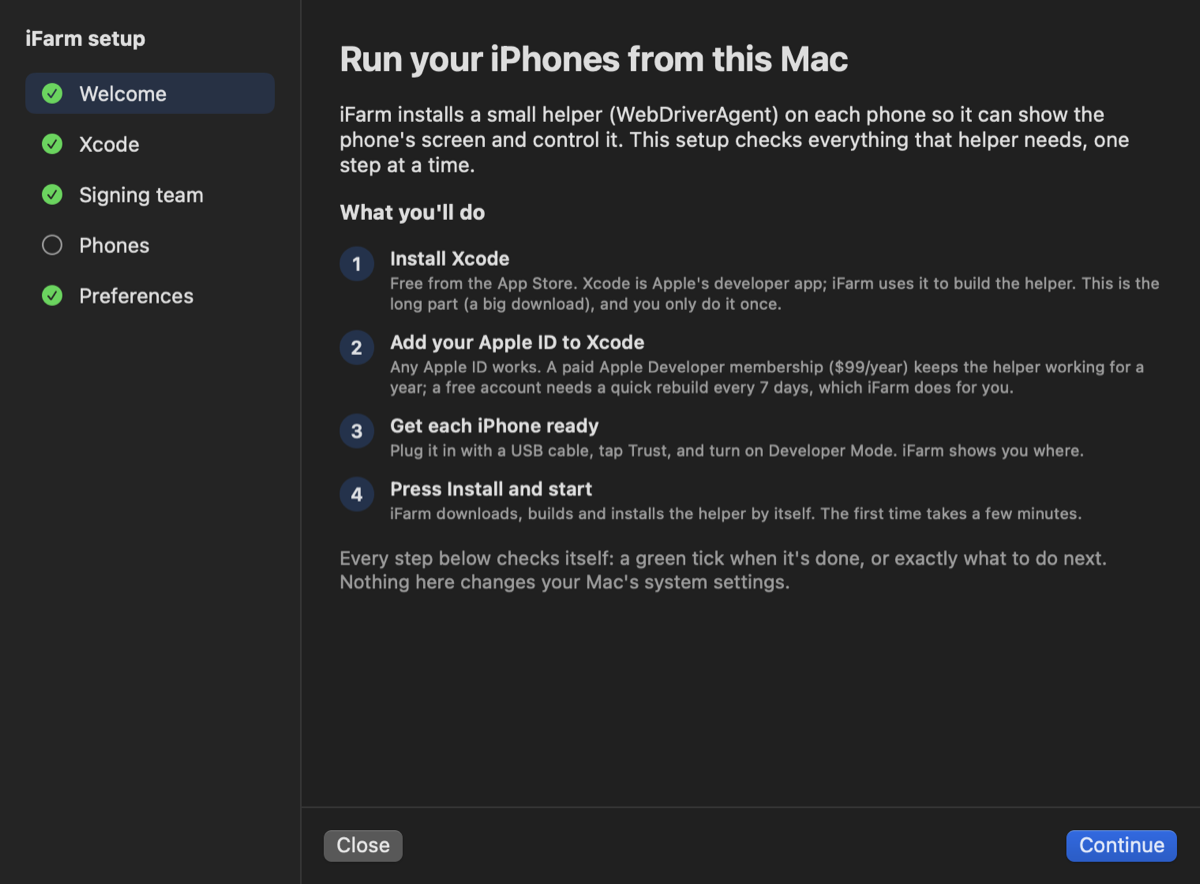
Install Xcode and iFarm
Xcode is free on the App Store. iFarm uses it to build its small helper for your phones.
Add your Apple ID
Any Apple ID works. A paid developer account keeps the helper valid for a year instead of 7 days.
Plug in your iPhones
Tap Trust, turn on Developer Mode. iFarm shows you exactly where, with a check for each step.
Press Start
iFarm downloads, builds and installs the helper by itself. Then every phone appears live on your Mac.
Everything a farm needs. All of it free.
Live grid and control
Every phone's screen in one window. Click to tap, drag to swipe, type from your keyboard, or mirror one gesture to many phones.
Record once, replay anywhere
Record what you do and replay it on any iPhone size. iFarm finds buttons by their text, not by pixel position.
Schedules, programs, flows
Run things at random times inside a window, day-by-day plans, and chains of automations with on-success and on-failure paths.
Drop a file, get a draft
Drag a video onto a phone, or into a Google Drive folder from anywhere. iFarm prepares the post; you decide whether it goes out.
AI auto mode
Give a phone a goal in plain words and watch the AI do it step by step: Claude, OpenAI, Gemini or a local model, your choice. It asks before posting or sending unless you turn that off, and it never buys anything. How it works.
Community templates
Install automations other people have tested, and share yours. Private details are removed before sharing.
Health and capacity
Live memory, CPU and bandwidth per phone, how many more phones your Mac can take, and a checklist for running 24/7.
Stop from the phone
Hold volume up and down on any phone and everything on it stops in under a second. The Mac shows it straight away.
Private by design
Nothing listens on your network, secrets live in your Mac's Keychain, and nothing changes your Mac's system settings.
The AI is the brain. iFarm is the hands.
You pick the brain: Claude, OpenAI's GPT models, Gemini, or a free model on your own Mac. iFarm does the tapping, and its safety rules stay the same whichever AI you choose. They understand each other through MCP, an open standard many AI apps already speak.
The brain only sees what iFarm shows it (a small screenshot, or the words on screen) and can only ask for what iFarm allows: tap, swipe, type, open an app, finish. Asking before posting, the activity log, Stop and the never-buys rule all live in iFarm, not in the AI.
Three ways to connect, from closest to farthest
On the same Mac
An AI app on the Mac that runs iFarm, such as Claude Code in the Claude desktop app, connects with one click. Or pick a brain inside iFarm itself with your own key.
Reach: only programs on that Mac, with a secret key.
From your other devices
The AI keeps running on your Mac, and you steer it from your phone or laptop. For example, Claude Code's Remote Control lets you talk to that session from the Claude app on your iPhone.
Reach: you, signed in to your own account. iFarm still only answers its own Mac.
From anywhere
A private web address for your iFarm with its own sign-in, so an AI app in the cloud could reach your phones without a session on the Mac.
Reach: only people you sign in. Off unless you turn it on.
Run the brain free, on your own Mac
Instead of a paid AI, you can run an open model on the Mac itself with the free apps Ollama or LM Studio, then pick it in iFarm under AI brain → Custom.
The catch: the model runs on the Mac's own chip and memory, next to the phones. Memory decides which models fit. Pick a model that can see images and use tools (look for the vision and tools tags in Ollama's library).
16 GB memory
A base Mac mini M4. Fits small 7–8B vision models (for example Qwen3‑VL 8B). Good for short, clear tasks: open an app, tap by name, read a value.
A few seconds per step. Keep to about 4 phones.
24–32 GB memory
A Mac mini M4 with more memory, or an M4 Pro. Fits 12–24B models (for example Mistral Small 3.2, which Ollama tags for vision and tools) with room left for the phones.
The sweet spot for a small farm.
48–64 GB memory
A Mac mini M4 Pro or a Mac Studio. Fits 30B-class models (for example Qwen3‑VL 30B), the best local results for longer tasks.
Pro chips also answer faster: more memory speed.
96 GB and up
A Mac Studio with a Max or Ultra chip. Runs the largest open vision models, and a big farm next to them.
For a dedicated AI and farm machine.
Be realistic: even large local models are weaker than Claude or GPT at long, multi-step phone tasks. For jobs you repeat every day, a recorded automation is faster and needs no AI at all. iFarm's safety checks apply to local models too, and each app's own rules still apply whichever brain you use. New open models come out often, so check Ollama's library for the newest ones with vision and tools.
Curious about the details? How the AI connection works, step by step.
Not just social. Any job that needs real iPhones.
Use it however suits your work. Here's what people use it for.
How you use it is up to you; follow the rules of the apps you automate and of any client you test for. iFarm doesn't hide automation from apps and never buys anything. By default it asks before posting, sending or following, and you can switch that off.
What you need, and how many phones it runs.
- A Mac on macOS 14 or laterApple silicon or Intel. A Mac mini makes a great always-on farm.
- Xcode (free)From the App Store. iFarm uses it to build the phone helper.
- An Apple IDFree works (re-signed every 7 days, automatically). A paid developer account ($99/yr) lasts a year and registers up to 100 iPhones.
- iPhones on iOS 16 or laterWith data cables. A powered USB hub for 3 or more.
| Mac memory | Phones, comfortably |
|---|---|
| 8 GB | 5–10 |
| 16 GB | 10–20 |
| 32 GB or more | 20–30, limited by USB hubs |
About 140 MB of Mac memory per phone. Grid tiles stream at 10 fps (about 1 MB/s), phones off screen at 2 fps, and the one you open at full speed. Plan on 10–15 phones per powered USB hub. iFarm's Health page shows the live numbers for your Mac. The hub, fan and rack we recommend.
Straight answers.
Is it really free?
Yes. Every feature, any number of phones, for life. There's no account, no trial and no paid tier. The only optional costs are outside iFarm, such as Apple's $99/year developer program.
Do I need to use the Terminal?
No. Install Xcode and iFarm, and everything else happens inside iFarm: it downloads, verifies, builds and installs its helper on each phone, and its setup screen tells you what to do at every step.
How do I control the phones?
iFarm installs a small helper app on each iPhone (Apple's UI-testing system, built with your own Apple ID). Your Mac talks to it over the USB cable, or over Wi-Fi protected by a secret only your Mac has. You click and type on the live screen in iFarm, and the phone does it.
Can I control my phones when I'm away from the Mac?
iFarm itself only accepts connections from the Mac it runs on, on purpose. To work remotely, connect to the Mac with macOS Screen Sharing or any remote-desktop app and use iFarm as if you were there. To send content from anywhere, use the drop folder: put a video in a Google Drive, Dropbox or iCloud folder from your phone and iFarm picks it up at home.
How many phones can one Mac run?
About 140 MB of memory per phone, so roughly 5–10 phones on an 8 GB Mac and 20–30 on 32 GB or more. On bigger Macs USB hubs are the limit (10–15 phones each). The Health page shows your Mac's real numbers.
Does iFarm post for me?
Your choice. Out of the box, iFarm prepares posts as drafts and waits for your click before posting, sending or following. Turn off “Ask me before posting” in Setup → Preferences and your automations, schedules and drop folder post on their own. iFarm never buys anything either way.
Will my accounts get banned?
Many apps' terms don't allow automated use, and accounts can be restricted. iFarm acts only through normal taps and swipes on phones you own, and it doesn't include tricks to hide automation from the apps. Read each app's rules, and use automation on accounts you can afford to lose.
Does iFarm set up proxies or VPNs?
No. iFarm doesn't change the phones' network settings; each phone uses whatever Wi-Fi, cellular, VPN or proxy it's set to. If you want one, set it up on the phone yourself (iOS Settings or a proxy/VPN app), within the rules of the apps you use. For testing, iOS's own Settings → Wi-Fi → ⓘ → Configure Proxy works with debugging proxies like Charles or Proxyman.
Why does macOS say it can't verify iFarm?
Because iFarm isn't notarized by Apple yet. Notarizing requires a paid Apple Developer ID and Apple checking every build. iFarm is free and independent, so it skips that for now, and macOS asks you to approve it once in System Settings → Privacy & Security → Open Anyway. How to open it.
If I connect Claude, can I reach other people's Claude Code, or can they reach mine?
No. iFarm has no servers and no accounts, so nothing links one user to another. Your Claude Code talks to your copy of iFarm over a private line inside your own Mac, protected by a secret key. How Claude works with iFarm.
Where does my data go?
Nowhere. Phones, settings, automations and history stay on your Mac. Passcodes and secrets are kept in your Mac's Keychain. If you use AI auto mode, screenshots go to the AI company you picked (or stay on your Mac with a local model). How Claude works with iFarm.
Your farm, free. For life.
Download iFarm, open it, and the setup screen walks you through the rest.
Download for Mac ☕ Buy me a coffeeLatest version: 1.0 (build 85), released November 10, 2026
The first time you open iFarm, macOS will warn you. Here's why.
Apple only skips that warning for apps whose developer pays for an Apple Developer ID and sends every build to Apple to be checked (“notarized”). iFarm is a free, independent project and doesn't do that yet. So macOS says it “could not verify iFarm is free of malware”. That message means Apple hasn't checked this app. It doesn't mean anything was found in it.
We'd rather tell you that up front than hide it:
- What it connects to. iFarm only connects to the internet to download its phone helper (checked against a fixed checksum), to load the template list, and to reach the AI provider you pick if you turn on auto mode.
- What it can touch. iFarm runs as a normal app with your permissions. It never asks for your Mac's password and doesn't change your system settings. The only thing it installs is its small helper app on the iPhones you connect, built with your own Apple ID.
- Only download it from this page. A copy from anywhere else could have been changed.
Opening it the first time
- Drag iFarm into Applications, then open it. When macOS warns you, click Done (not Move to Trash).
- Open System Settings → Privacy & Security and scroll down to “iFarm was blocked to protect your Mac.”
- Click Open Anyway, then confirm with your Mac's password or Touch ID. That's macOS asking, not iFarm.
You only do this once. After that, iFarm opens like any other app. When an update replaces the app, macOS may ask once more.